iPhone Quickpath Mastery
Apple's Quickpath Feature Enhances iPhone Texting and Typing Efficiency with Hidden Shortcuts
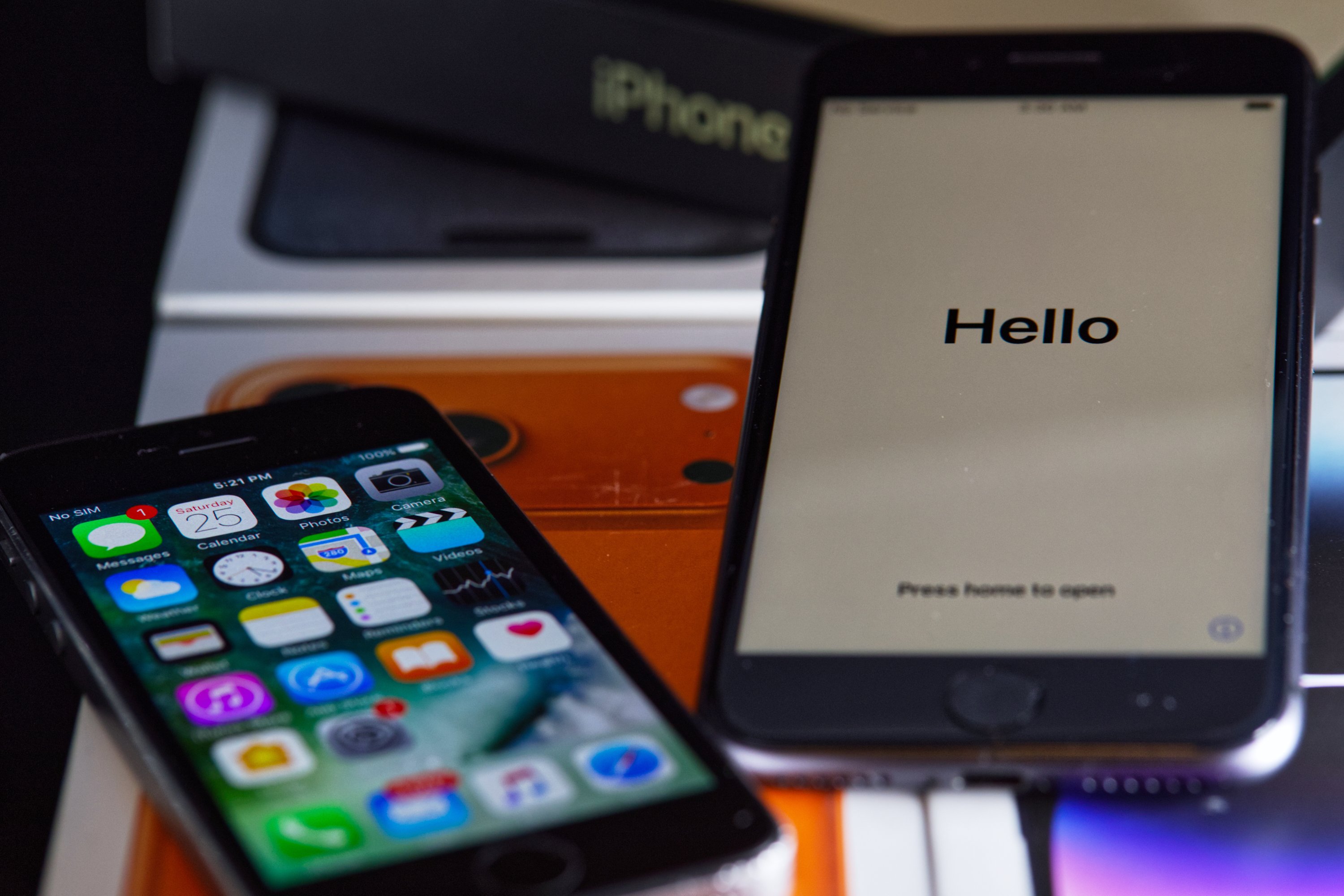
Most iPhone users tap one letter at a time. But Apple has built hidden shortcuts into the keyboard that can make typing much faster — and most people have never tried them. NBC New York reports that these tricks often only come to wider attention when social media influencers share videos showing them off.
The shortcuts work on any modern iPhone, though NBC Connecticut notes they tend to work even better on a larger screen like an iPad. Here is what you need to know.
Quickpath Lets You Swipe Words Instead of Tapping
Apple's Quickpath feature is the biggest shortcut most users ignore. Instead of tapping each letter one at a time, you slide your finger across the keyboard from letter to letter without lifting it. The phone figures out what word you meant. According to NBC Philadelphia, you enter text by sliding around the screen's digital keyboard rather than tapping and lifting your finger on each letter.
It sounds tricky but gets fast with practice. You simply start at the first letter of a word and glide to each next letter in order. Lift your finger when the word is done. The keyboard predicts the word as you go.
Space Bar Trick Turns Your Keyboard Into a Trackpad
Moving your cursor to fix a typo is usually a pain. There is a faster way. Press and hold your thumb on the space bar until all the letters on the keyboard disappear. Then drag your thumb around. The cursor moves through your text like a mouse pointer, according to NBC Chicago.
This works inside text bubbles too. Hold your thumb inside the text window and slide it around. You can place your cursor exactly where you want it in just one move. No more tapping repeatedly to get to the right spot.
Three-Finger Pinch Copies Text in One Quick Move
Copying and pasting text on iPhone can feel clunky. But there is a shortcut that skips several steps. First, highlight the text you want. Then pinch three fingers closed over the highlighted selection. That copies it instantly, according to NBC Washington. To paste, spread three fingers open on the screen where you want the text to go.
This three-finger gesture works across many apps. You can also undo a recent action by quickly swiping three fingers to the left. Swipe three fingers to the right to redo it. These gestures replace the need to dig through menus.
Where These Shortcuts Work — and Where They Fall Short
Not every shortcut works in every app. NBC San Diego notes that some features, like selecting and deselecting text, work well in the Notes app or in emails. But in chat apps like iMessage or WhatsApp, the shortcuts may only kick in after you have highlighted more text than you actually want.
NBC Bay Area points out that all of these tricks perform better on a bigger screen. iPhone users will still benefit, but iPad users get the smoothest experience. If you have never tried any of these shortcuts, the space bar trackpad trick is the easiest one to start with today.
Sentiment
NeutralPublishers
8
Articles
8
Reach
8


